Metronom 137 for iOS and Apple Watch
Consulter la version française

Apple Watch & iPhone App

A metronome for Apple Watch and iPhone that simplifies your music practice. Vibrates rhythmically on your wrist, remembers the tempo of every track in your setlists, checks whether you’re actually playing on tempo, and connects to your setlists on The Live Setlists.
Features
Apple Watch
- Metronome from 20 to 320 bpm
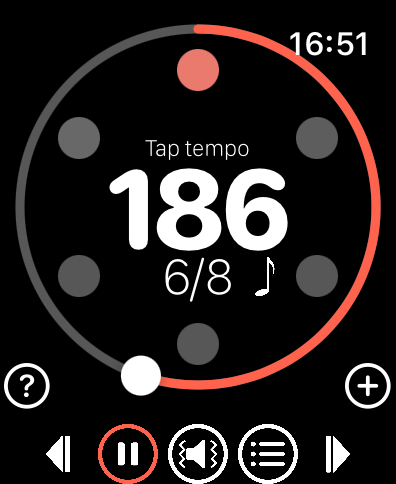
- Very easy to adjust by sliding on the screen, or with the Digital Crown for fine control
- Marks the beat by vibrating and emitting a sound, with 4 modes: vibration and sound, sound alone, vibration alone, discrete mode
- Tap tempo by tapping in the center of the screen
- Time signature management (4/4, 3/4, 6/8…) by swiping from the center of the screen
- Tap a beat marker to accent or soften it
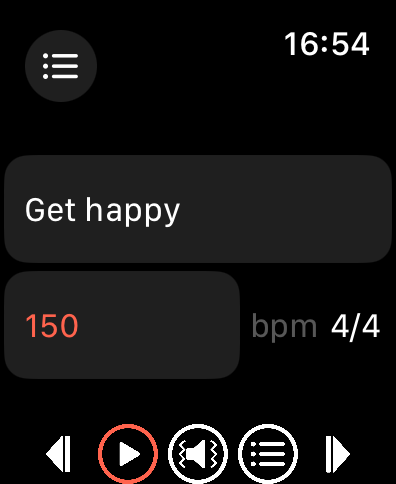
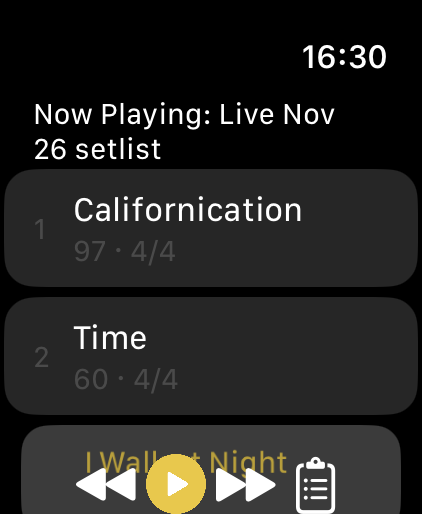
- Setlist management: save the current setting to a track, reorder or delete tracks as you wish
- Skip to the previous or next track with a single tap
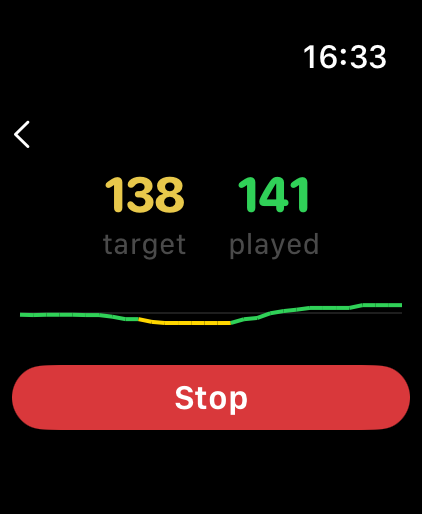
- Start, stop, and follow Tempo Check sessions right from your wrist
iPhone companion app
- Full metronome with the same features as the Apple Watch app, in a clear, redesigned interface
- Multiple named local setlists, reorderable with a simple drag
- Browse and load setlists from The Live Setlists (optional account required)
- Tempo, time signature, active setlist and track all stay perfectly synchronized between iPhone and Apple Watch in real time, in both directions
Tempo Check
Not sure you’re actually playing on tempo? Tempo Check listens through the iPhone’s microphone and compares what you’re playing to your target BPM in real time, with a live graph and color-coded feedback. Tracking is shown on both the iPhone and the Apple Watch, so you can check your tempo without looking away from your instrument. A short session is free to try; unlock unlimited Tempo Check sessions with a one-time in-app purchase.
The Live Setlists integration
Metronom 137 is partnered with The Live Setlists, a platform where you can build and manage your setlists and collaborate with your bandmates. Any setlist you create on The Live Setlists is automatically available in Metronom 137 for your rehearsal sessions. When you adjust the tempo or time signature of a track on your iPhone or Apple Watch, the change can be saved back to The Live Setlists so your whole band always sees the latest values.
Screenshots
Metronom137 on iOS


Metronom137 on watchOS
User manual
Basic gestures
- Set the tempo: [iPhone + Watch] drag the slider around the dial. [iPhone] you can also use the + / − buttons at the top of the screen. [Watch] you can also use the Digital Crown.
- Start / stop the metronome: [iPhone + Watch] tap the play/stop button on the main screen.
- Change the time signature: [iPhone + Watch] swipe up or down on the time signature to change the number of beats per bar, or left/right to change the beat subdivision.
- Tap tempo: [iPhone + Watch] tap in rhythm on the tempo number.
- Sound and vibration: [iPhone + Watch] tap the sound/vibration indicator to cycle through the 4 modes.
- Accent a beat: [iPhone + Watch] tap the circle for the beat you want to accent, as many times as you like, to raise or lower its volume.
Managing local setlists
A local setlist is a list of tracks stored on your iPhone and on your Apple Watch.
- Save the current setting to a track: [iPhone + Watch] tap the circled + button.
- Open your setlists: [iPhone + Watch] tap the setlist button. [Watch] only the current local setlist is shown. [iPhone] you can create and switch between several local setlists.
- Reorder tracks in a setlist: [iPhone + Watch] in the setlist view, press and hold a track, then drag it to the desired position.
- Rename or delete a track: [iPhone + Watch] swipe left to delete, swipe right to rename.
- Rename a setlist: [iPhone] tap the pencil button at the top of the setlist’s detail view.
- Add a setlist: [iPhone] tap the + button on the Setlists screen.
- Play a setlist: [iPhone] open the setlist, then tap one of its tracks.
- Go to the next or previous track: [iPhone + Watch] tap the forward or back button on the metronome’s main screen.
Accessing your The Live Setlists setlists
- Sign in to your account: [iPhone] from the “Account” screen.
- Browse your setlists: [iPhone] once signed in, open the Setlists screen. Refresh with the circular-arrow button if needed. Setlists are listed by most recent change, whether it was made on the website, the The Live Setlists app, or Metronom 137 itself.
- Edit a setlist’s tracks: only possible from the The Live Setlists app or thelivesetlists.com — Metronom 137 lets you play a setlist, not restructure it.
- Choose a setlist: [iPhone] select the setlist, then tap one of its tracks.
- Edit and save a track’s tempo or time signature: [iPhone + Watch] after changing it, tap the down-arrow that appears in the bottom-left corner of the metronome screen to save it back to The Live Setlists.
Tempo Check
Tempo Check listens through the iPhone’s microphone only, but shows live tempo tracking on both the iPhone and the Apple Watch.
- Open Tempo Check: [iPhone] select “Tempo Check” from the tab bar. [Watch] tap the Tempo Check icon in the top-left corner of the metronome screen.
- Start / stop listening: [iPhone + Watch] tap Start/Stop on the Tempo Check screen — you can start or stop a session from either device.
- Review a session: [iPhone] the graph can be scrolled and pinch-zoomed, with elapsed time in seconds shown below it. Each point and line segment is color-coded: green means you’re within about 2% of the target tempo, amber within about 6%, and red further off than that.
- Free preview and unlock: a short listening session is free to try. Unlock unlimited Tempo Check sessions with a one-time in-app purchase.
Changelog
Version 1.3
- New: Tempo Check — listen back to what you’re playing and see, in real time, how it compares to your target tempo, with a live color-coded graph. Free to try for a short session; unlock unlimited use with a one-time purchase.
- Apple Watch connectivity is now fully two-way: your active setlist, current track, tempo, time signature, and even a running Tempo Check session all stay in sync between iPhone and Apple Watch in real time, whichever device you touch.
- Redesigned track lists and setlist screens on both iPhone and Apple Watch, clearer and easier to read.
- Local setlists on iPhone can now be reordered with a simple drag.
- Numerous reliability improvements to the synchronization between iPhone and Apple Watch.
Version 1.2
- iPhone companion app
- Multiple named local setlists on iPhone
- Integration with The Live Setlists: browse, load and play your TLS setlists directly from the app
- BPM and time signature changes automatically synced back to The Live Setlists
- Real-time synchronization between iPhone and Apple Watch
Version 1.1 Setlist feature improvements:
- Remember last selected track in setlist
- Buttons to skip to the previous or next track in the setlist
Support
You can contact the developer by e-mail: info (@) tducray.fr
Privacy policy
Personal data
Metronom 137 respects your privacy. A The Live Setlists account is entirely optional. The app works fully offline without one.
Without a The Live Setlists account, Metronom 137 does not collect any personal data, or any data for that matter. Everything stays on your devices.
Microphone (Tempo Check): if you use Tempo Check, the app listens through the iPhone’s microphone to estimate the tempo you’re playing. This processing happens entirely on your device, in real time — no audio is ever recorded to a file, stored, or sent anywhere, on any device, with or without a The Live Setlists account.
In-App Purchase: unlocking unlimited Tempo Check sessions is handled entirely by Apple’s App Store (StoreKit). Metronom 137 does not collect, see, or store any payment or billing information — only Apple does, under Apple’s own privacy policy.
With a The Live Setlists account (optional), the following data is involved:
| Data | Where stored | Purpose |
|---|---|---|
| Email address | On your device (iPhone) | Display your account in the app |
| Authentication token (JWT) | On your device (iPhone Keychain, Apple Watch) | Authenticate requests to The Live Setlists |
| User identifier | On your device (iPhone) | Identify your account |
| Device identifier | Sent to The Live Setlists servers at login | Remove ads while using The Live Setlists website pages on your device (iPhone) |
| Setlist and track data | Fetched from The Live Setlists servers | Display your setlists in the app |
| BPM and time signature changes | Sent to The Live Setlists servers | Save your per-track customizations |
When you use a The Live Setlists account, the The Live Setlists Privacy Policy also applies to data processed on their servers.
Stored data
- Apple Watch: metronome settings (BPM, beats per bar, division) and your local setlist. Authentication token if you are logged in.
- iPhone: metronome settings and your local setlists (names and tracks). Authentication token (Keychain) and account email if you are logged in. Tempo Check readings are kept only in memory for the duration of a session and are never written to disk.
You can view and delete your local setlists directly in the app. Logging out removes the authentication token and your email from the device immediately.
Definitive deletion of data
Deleting the application permanently deletes all locally stored data, including any in-progress Tempo Check session. To delete data held on The Live Setlists servers, contact The Live Setlists through their website.